
Education
How to Trade on Liquid
Place and manage your first trade on Liquid. Learn how to choose a market, read size and margin, set exit orders, confirm a fill, and close a position.

To place a trade on Liquid, open Trade, choose a market, and complete the order form beside the chart. Before you submit, check what you are trading, how much exposure you are taking, and how you plan to exit. After you submit, check what filled.
This guide follows a BTC perpetual trade in the web app, from market selection to closing the position. The recordings show the controls in use. Their prices, sizes, and exit presets are examples, not suggested trade settings.
A perpetual future, or perp, lets you trade an asset's price without owning the asset. Spot trading lets you buy and sell the token itself. A BTC perp does not put Bitcoin in your wallet, and a stock perp does not give you company shares.
If this is your first trade, the beginner guide explains how to practice with simulated funds. This tutorial uses the web layout at app.liquid.trade; mobile layouts and controls can differ.
1. Open Trade and check your balance
Sign in to the account you want to use, then open Trade or the trading terminal. If you need to add funds, follow the funding guide first.
The terminal has four main areas:
- Market selector: the asset name at the top-left. Use it to change markets.
- Chart: price history for the selected market.
- Order form: the controls beside the chart for direction, order type, size, and exits.
- Account tabs: Positions, Balances, Open Orders, and history below the chart.

Start with the market selector at the top-left.
Check Available to Trade after you select your market. This is the balance available for that order. Complete any trading setup or balance transfer the app requests before you continue.
2. Choose the right market
Select the asset name at the top-left. You can also open search with ⌘K on Mac or Ctrl+K on Windows. Enter an asset name, such as BTC, or use the category filters.
Check the market type before you select a result. Search can show different products for the same asset. A leverage badge shows the market's maximum leverage, not the leverage you have chosen for your order.
Choose the product that matches your trade
Scroll horizontally to compare
| Market | What you trade | Check before you enter |
|---|---|---|
| Crypto perp | A contract on a token's price; you can go long or short | Margin mode, leverage, funding, and liquidation estimate |
| Spot | The token itself; selling uses tokens you hold | Exact token, available balance, and liquidity |
| Stocks or Pre-IPO | Price exposure through a contract, rather than company shares | Contract details, venue, and live market status |
| FX, Commodities, or Indices | Price exposure to a currency pair, commodity, or index | Pair direction, trading hours, and leverage cap |
Prediction markets use event contracts and a separate trading flow. For those, follow How to trade prediction markets. For more detail on other products, read What every market on Liquid actually is.
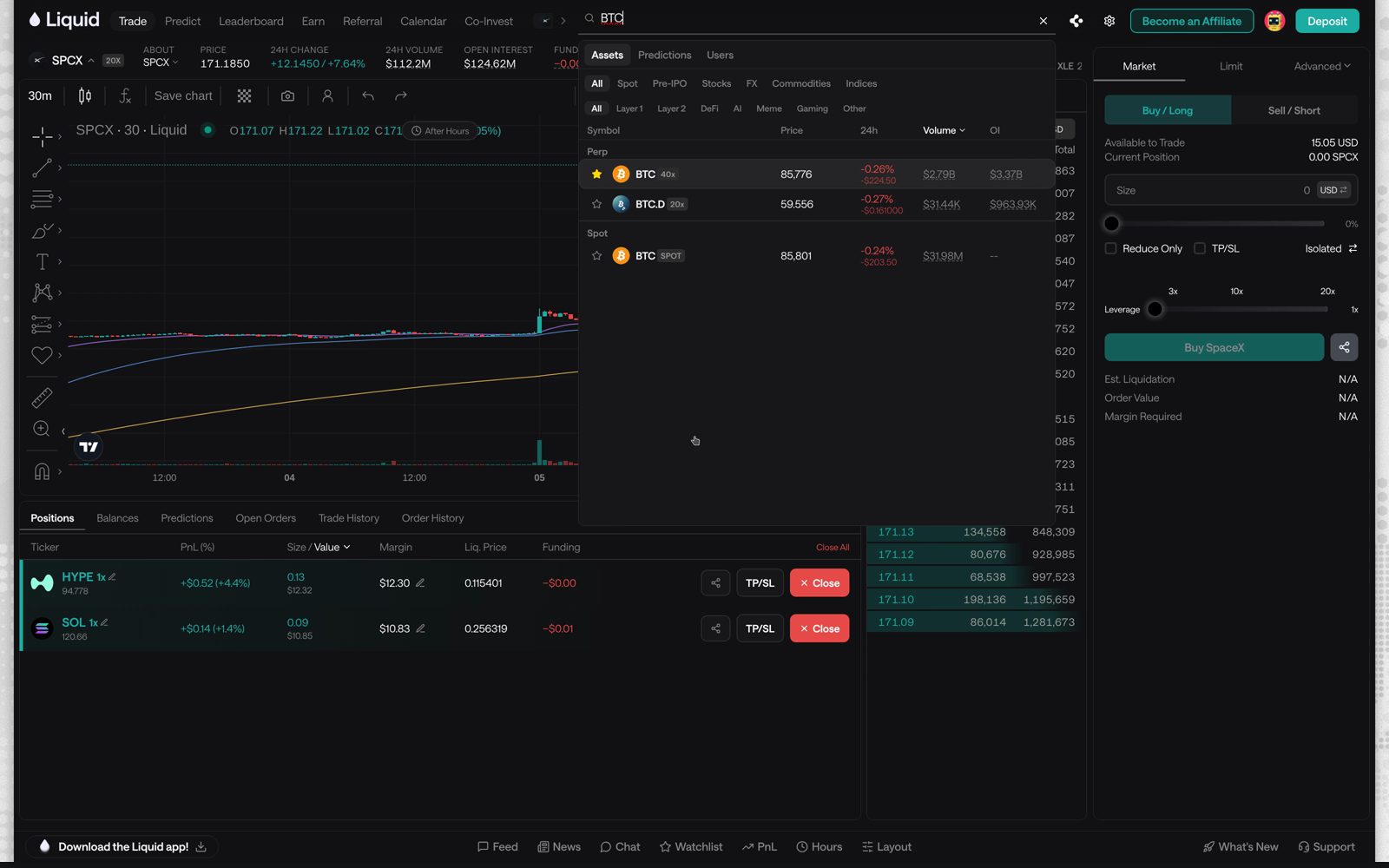
For the steps below, select BTC perp. Check that the asset name above the chart and in the order form is BTC. Minimum size, order types, margin rules, and trading hours can differ by market.
3. Build, review, and submit your order
Choose your direction and entry price
On a perp, Buy / Long opens or increases exposure that gains when the price rises. Sell / Short opens or increases exposure that gains when it falls. If you already hold a position, an opposite order can reduce or reverse it, depending on size. Check Current Position first.
Select Market or Limit:
- Market attempts to trade now at available prices. The fill can differ from the chart price because of the spread and slippage. Check the result for the price and quantity that filled.
- Limit sets your price boundary. A buy can fill at your limit or lower; a sell can fill at your limit or higher. It can fill at once if matching orders are available, or remain in Open Orders. A fill is not guaranteed.
For example, a BTC limit buy at $80,000 can fill at $80,000 or less. It does not buy at $81,000. Even if the chart reaches $80,000, your order can remain partly or fully unfilled.
The Advanced menu contains other order types for the selected market. Learn the Market and Limit controls before using them.
Set size, leverage, and margin mode
Enter Size and check its unit. In Liquid's BTC perp form, USD size sets the margin you commit. Leverage turns that margin into a larger position. If you switch to BTC, size is the token quantity of the position. Check Order Value and Margin Required after changing the unit or leverage.
On a perp, leverage sets how much margin supports that exposure. Adjust leverage, then read Margin Required and Est. Liquidation. The liquidation estimate is the price at which insufficient margin can cause the position to be closed. It can change as the position and account change.
Check the margin mode where offered. Isolated allocates margin to that position. Cross shares collateral across positions in the relevant margin account, so one position can affect the others. See cross vs isolated margin before you change it.
Leave Reduce Only off for a new position. Enable it when an order must only reduce an existing position. It prevents that order from opening exposure in the opposite direction.
Set your take-profit and stop-loss
Enable TP/SL to add exit orders where supported:
- Take-profit (TP): attempts to close at a profit when its trigger is reached.
- Stop-loss (SL): attempts to close when the price moves against you to its trigger.
Use a preset or enter a price or percentage. Then read the resulting trigger prices and estimated profit or loss. Check those values after changing direction, size, or leverage. A percentage alone does not tell you the dollar loss or exact trigger.
In the BTC perp form, the percentage includes leverage. At 5x, a 5% stop-loss corresponds to about a 1% adverse price move. With $100 of margin and $500 of exposure, that is about $5 of loss before costs. It does not mean waiting for BTC to fall 5%.
For a long, a typical take-profit is above entry and a stop-loss is below it. For a short, the directions reverse. The basic entry-form exits use market orders when triggered. Where offered, the position's TP/SL editor also supports limit prices and partial exits.
Review before you select Buy or Sell
Check the market, direction, order type, size unit, order value, margin, leverage, exit triggers, and displayed fee. For a limit order, check the limit price too.
In the BTC market-order flow below, selecting Buy BTC submits the order without a separate confirmation dialog. Finish your review before you select the button.
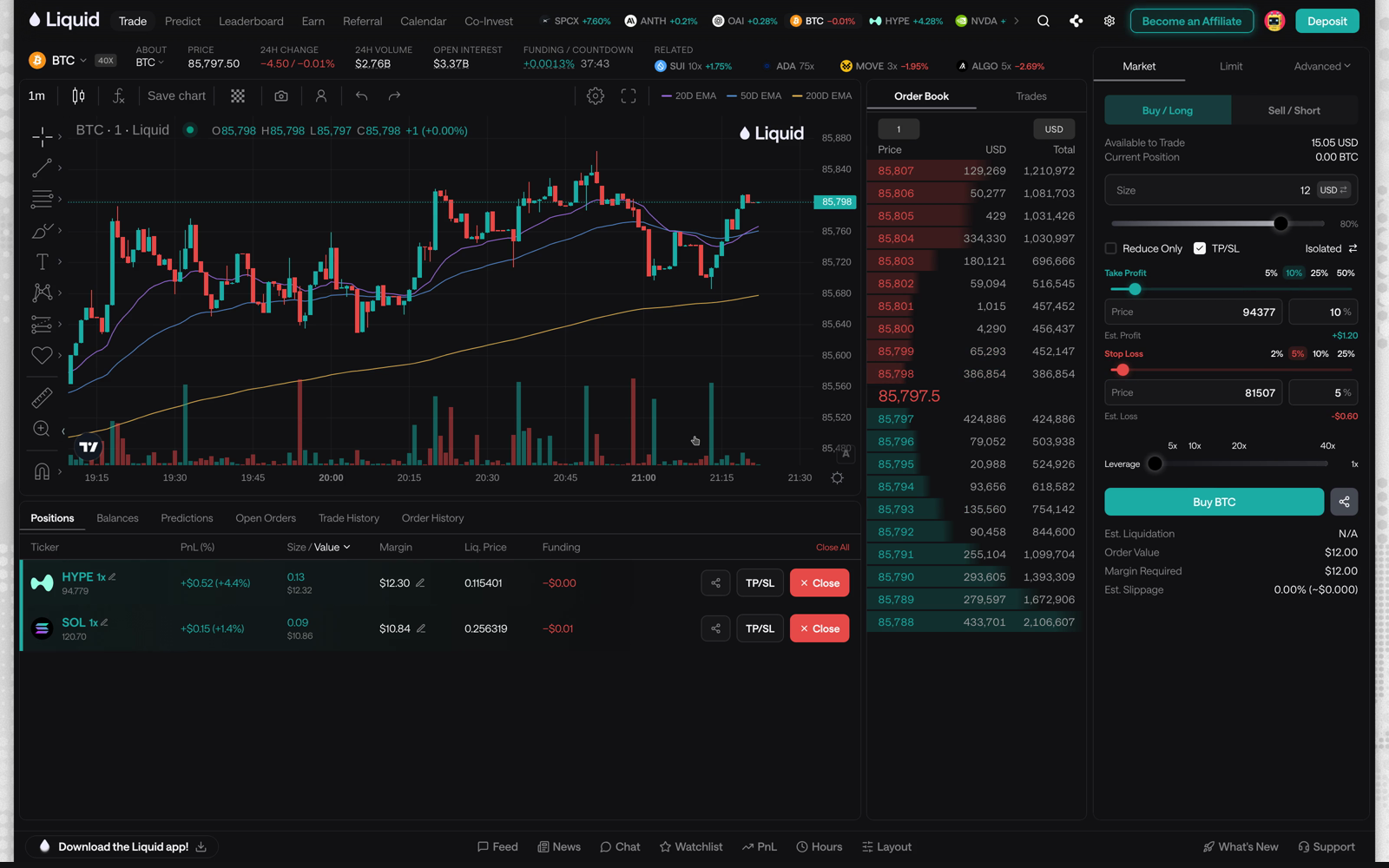
Read the result notification. Check Positions for filled perp exposure and Open Orders for any unfilled amount. Use Trade History to check the execution price and size. For a spot purchase, check Balances for the token you bought.
Confirm your exits too. Check the position's TP/SL controls and Open Orders for the exit orders. After a partial fill or cancellation, check that the remaining position has the exits you intended. Do not submit the entry again just because the screen has not updated.
4. Manage and close your position
Find your perp in Positions below the chart. Check its size, profit or loss (PnL), margin, liquidation price, and funding where shown. PnL is still unrealized while the position is open.
Perpetual positions can pay or receive funding while you hold them. Read the market's rate and payment timing; these can vary by venue. Funding, execution fees, spread, and slippage affect your result. Check the fee schedule for your route. Spot can have venue fees even when Liquid adds no fee.
Use TP/SL on the position row to review or change exits. Confirm that the new orders appear after you save.
To close a position:
- Select Close on its row.
- Choose Market to attempt an immediate exit, or Limit to set an exit price.
- Check the quantity. Use 100% for the full position or a smaller percentage for a partial close.
- Review the details and submit the close order.
- Confirm the fill in Trade History and check the remaining size in Positions.
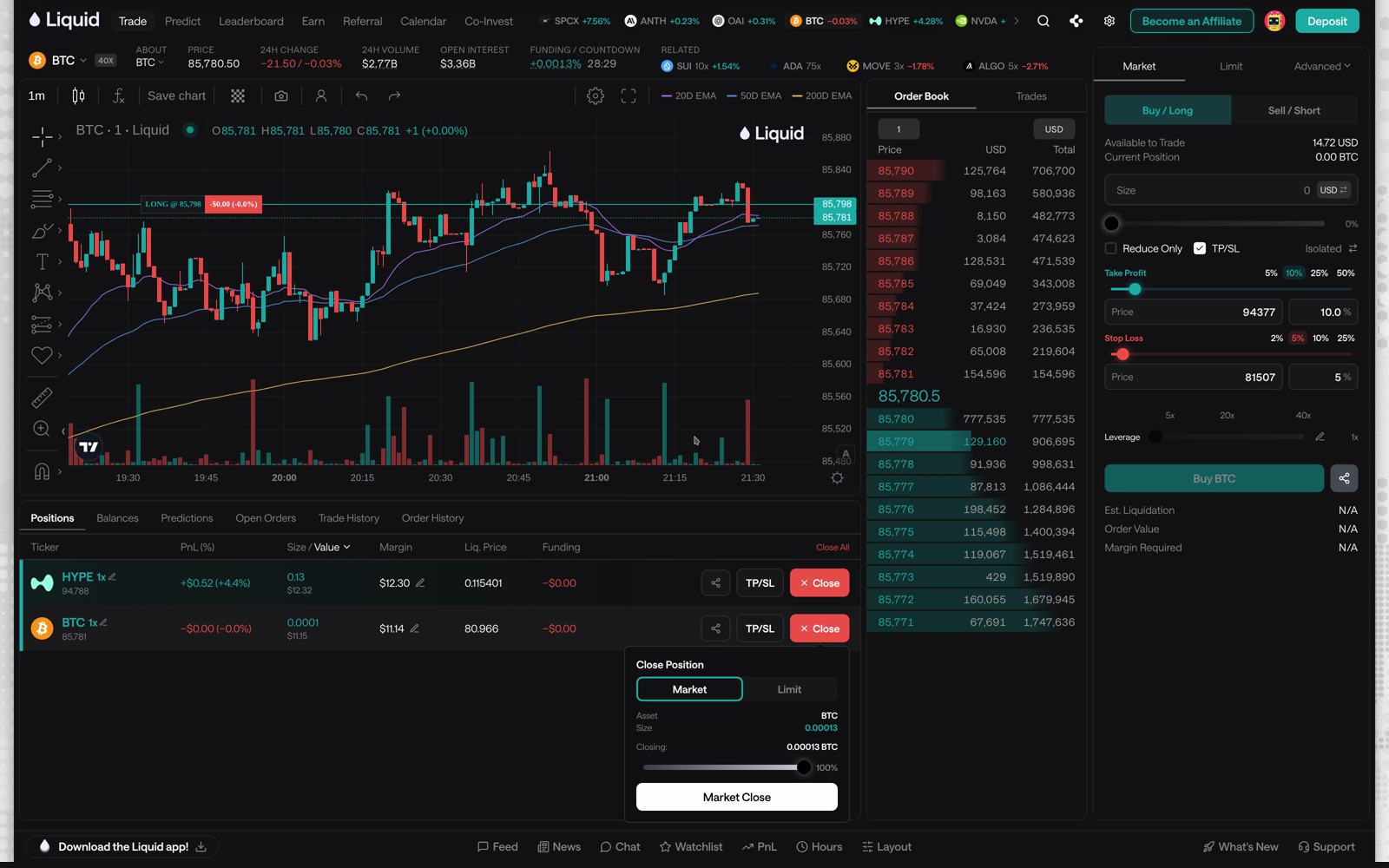
A submitted close order is not the same as a closed position. A limit close can remain in Open Orders while the position stays open. After a partial close, review the exits for the remaining size. After a full close, check for orders you no longer want, including unfilled entry orders that could open exposure again.
If an order needs attention
- Buy or Sell is disabled: check the minimum, size unit, Available to Trade balance, required fields, and market status. A limit order needs a price.
- A limit order has not filled: check Open Orders and the remaining quantity. Review its price before changing or canceling it.
- No new position appears: check the result notification, Open Orders, Trade History, and Order History before trying again. For spot, check Balances.
- TP/SL is missing: review the position's exit controls and Open Orders. If no exit order exists, set it from the position row and check again.
- Direction or size is wrong: use Close to reduce or close the position. If you use the order form, select Reduce Only and check the quantity.
- The close order is pending: the position can still be open. Check its remaining size and the unfilled close order before submitting another exit.
If the result remains unclear, use Support in the app or Liquid support. Include the market, order type, size, approximate time, and order ID if available. Never share a private key or recovery phrase.
You have completed the trade when you have confirmed the entry, checked the exit orders, and verified the final close. Use the same checks each time.
Frequently Asked Questions
How do I place a trade on Liquid?
Sign in, open Trade, and select a market. Check whether it is a perpetual or spot product. In the order form, choose your direction and order type, enter a size, and set leverage and exits where supported. Review the order value, margin, trigger prices, and fee before submitting. Then check the filled size and price in Trade History, and any unfilled amount in Open Orders.
What is the difference between a market and a limit order?
A market order attempts to trade now at available prices; its fill can differ from the chart price. A limit buy can fill at its limit price or lower, and a limit sell at its limit price or higher. A limit order can fill at once or remain in Open Orders. Reaching the limit price does not guarantee a full fill.
What does USD size mean in Liquid's BTC perp form?
USD size sets the margin you commit in the BTC perpetual form. Entering $100 at 5x leverage shows $100 Margin Required and $500 Order Value. Keeping USD size at $100 and raising leverage to 10x increases exposure to $1,000. If you switch to BTC units, size is the position's token quantity. Check Order Value and Margin Required after changing the unit or leverage.
How do TP/SL orders work on Liquid?
Where supported, TP/SL adds take-profit and stop-loss exit orders. Review the trigger prices and estimated profit or loss. In the BTC perp form, the percentage includes leverage: a 5% stop at 5x corresponds to about a 1% adverse price move. Basic entry-form exits use market orders when triggered. The position editor can offer limit prices and partial exits. Confirm the exit orders after the entry fills, especially after a partial fill or cancellation. A stop-loss does not guarantee an exit price.
What is the minimum trade size and maximum leverage?
Minimum order size and maximum leverage vary by market. Use the minimum and leverage cap shown in the selected market's order form. The badge in market search shows the maximum, not your chosen leverage. Before submitting, check your size unit, margin requirement, and liquidation estimate.
How do I close a position on Liquid?
Select Close on the position row, choose Market or Limit, and check the quantity before submitting. Use 100% for a full close or a smaller percentage for a partial close. Verify the fill in Trade History and the remaining size in Positions. A limit close can remain unfilled while the position stays open. Review remaining exit and entry orders after closing.
What does it cost to trade on Liquid?
Check the displayed fee and Liquid's fee schedule for your market and route. Spot can have venue fees even when Liquid adds no fee. Perpetual positions can also pay or receive funding; rates and payment timing vary by venue. Include spread, slippage, and any closing fee when you assess the full cost.
Why did my order not create a new position?
Read the result notification and check Open Orders, Trade History, and Order History before trying again. A limit order may be unfilled or partly filled. An opposite order may have reduced an existing position. For a spot purchase, check Balances for the token rather than looking for a perpetual position.
Educational content only — not investment advice. Trading perpetual futures involves substantial risk and may not be suitable for every investor. Past performance is not indicative of future results.
Keep reading
All articles →
Education
How to Fund Your Liquid Account
A step-by-step on-ramping tutorial: add money with a card or bank transfer, move crypto from another app or wallet, and check when your funds are ready.
Education
Bitget Alternatives: Best Trading Platforms in 2026
Compare Bitget alternatives by fees, custody, derivatives access, and multi-asset coverage — including a non-custodial, 24/7 option with 50x multipliers.
Education
Bybit Alternatives: Best Trading Platforms in 2026
Compare Bybit alternatives by fees, custody, derivatives access, and multi-asset coverage — including a non-custodial 24/7 option with 50x multipliers.
Put what you learned to work.
Trade crypto, stocks, commodities, FX, indices, and pre-IPO names — plus prediction markets. Prediction contracts are unleveraged; eligible perpetual markets offer multipliers of up to 50×.