
AI & Trading
Can You Trade on Liquid with TradingView?
Yes. The free Co-Invest extension for Chrome adds a Trade button to TradingView charts, so you can go long or short on Liquid for the symbol you are charting without leaving the tab.

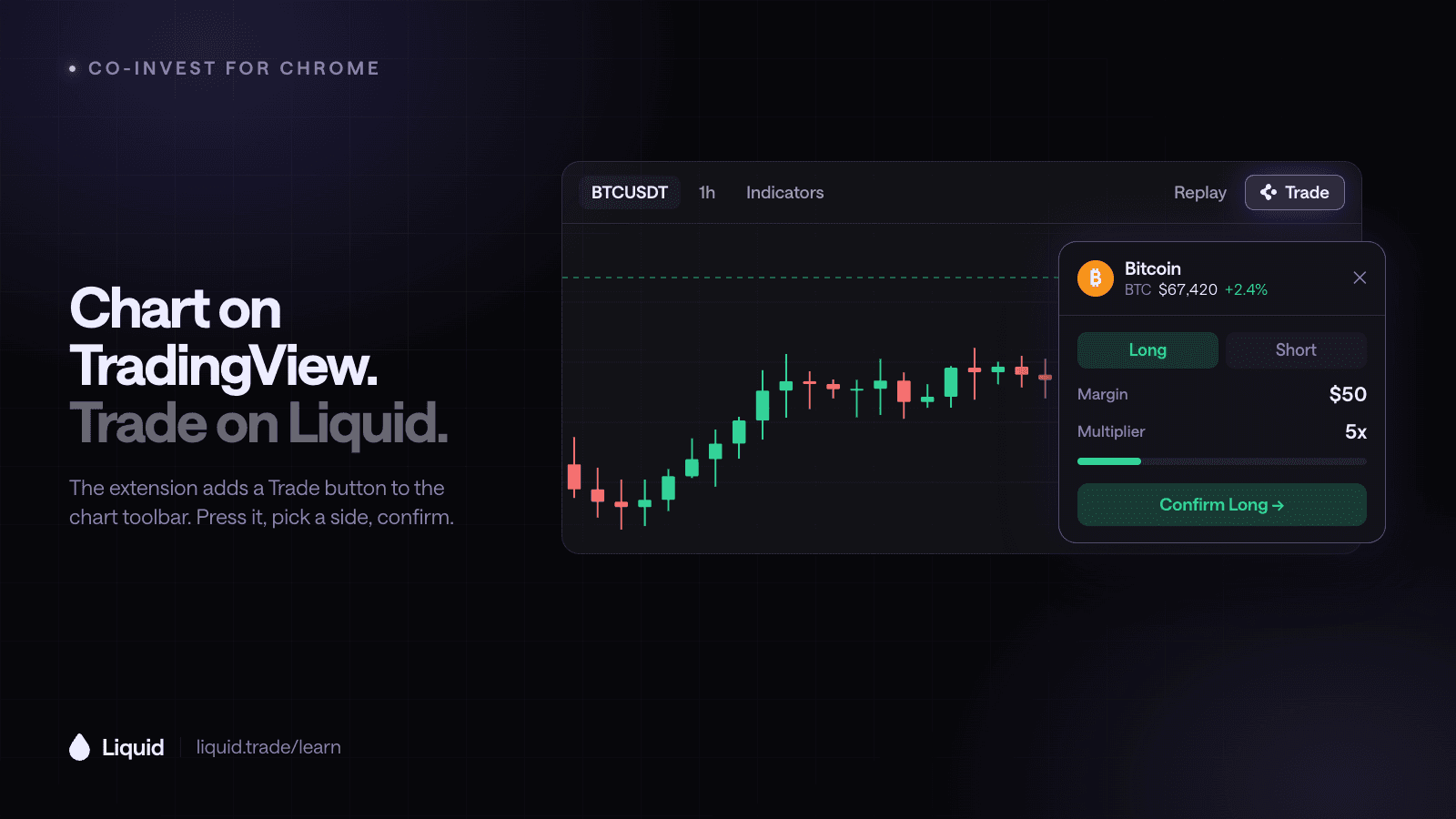
Yes. Install Co-Invest for Chrome, and TradingView charts get a Trade button that places orders on your Liquid account. Press it, pick Long or Short, set your size and multiplier, and confirm. The order goes to Liquid as a market order, and you never leave the chart.
Co-Invest is Liquid's free Chrome extension. On TradingView it adds its own Trade button to the chart's top toolbar, right next to Replay, and reads the symbol you are charting to find the matching Liquid market. It does not go through TradingView's Trading Panel or its broker connections, so there is nothing to link inside TradingView itself.
How Do You Trade on Liquid from TradingView?
Setup takes a few minutes, and you only do it once.
From install to first trade
Create a Liquid account
Sign up at app.liquid.trade with email, Google, or Apple, then deposit. USDC from most major chains, cards, and bank transfers all work.Install Co-Invest for Chrome
Add the extension from the Chrome Web Store in desktop Chrome. It is free; you pay only Liquid's normal trading fees on the orders you place.Connect from the side panel
Open the Co-Invest side panel and sign in to Liquid. There are no API keys or passwords to paste into the extension, and you stay signed in across restarts.Open a chart on TradingView
Load a chart at tradingview.com. A Trade button with the Co-Invest mark appears in the top toolbar, next to Replay.Press Trade, then confirm
A trade card opens over the chart for the symbol you are looking at. Choose Long or Short, set your size and multiplier, and press Confirm.
What Happens When You Press Trade?
The Trade button opens a compact card that floats over the chart. Its header shows the market, the live price, and the 24-hour change. Drag the header to move the card anywhere on screen, and it remembers where you left it. Press Trade again, or the ✕, to close it.
Inside the card:
- Long or Short. Tabs at the top set the direction. Picking one sends nothing.
- Size. Type a dollar amount or tap $15, $50, $100, or Max. Your saved default decides whether that amount is margin or notional.
- Multiplier. A slider from 1x up to that market's own maximum. If you already hold the market, the card uses your open position's multiplier instead.
- TP / SL. Optional take-profit and stop-loss levels, off by default and attached to the order when you turn them on.
- Confirm. The only button that sends an order. It reads Confirm Long or Confirm Short, so the direction is spelled out on the button you press.
As you adjust the size and multiplier, the card keeps the position's dollar value and an estimated liquidation price up to date, so you see the exposure before you send it.
The card also follows the chart. Switch symbols in TradingView and it reloads for the new market. Switch to a symbol Liquid does not list, and the card closes and the Trade button greys out, with a tooltip saying that symbol is not tradeable.
Which TradingView Symbols Can You Trade?
The Trade button works when the symbol on your chart matches a market Liquid lists. TradingView often names a market differently from Liquid, so Co-Invest translates the common spellings: an exchange pair like BTCUSDT becomes the BTC perpetual, and a forex-style ticker like XAUUSD maps to gold.
TradingView symbol to Liquid market
Scroll horizontally to compare
| On your TradingView chart | Trades on Liquid as | |
|---|---|---|
| Crypto | BTCUSD, BTCUSDT, ETHUSDT | BTC and ETH perps |
| US stocks | NVDA, TSLA, AAPL | NVDA, TSLA, and AAPL perps |
| Indices | SPX, US500, ES1!, NDX, NAS100 | S&P 500 and Nasdaq 100 |
| Metals | XAUUSD, XAGUSD | Gold and silver |
| Energy | USOIL, CL1! | WTI crude oil |
| FX | EURUSD, USDJPY | EUR and JPY |
If the button stays grey, hover it: the tooltip names the symbol it read and tells you it is not tradeable on Liquid. The full list of what Liquid offers is on the markets page, and our guide to every market on Liquid explains what each one gives you exposure to.
Is It Safe to Trade from a TradingView Chart?
A button that places real orders inside another website should be held to a high bar. Co-Invest is built so that the page around the card cannot act for you:
What the chart page cannot do
It cannot trade for you
Orders only go through when you press the extension's own buttons yourself. Nothing on the page can press Confirm on your behalf.It cannot see your account
The trade card is kept separate from the page around it, so the site cannot read your balance, your size, or your Liquid session.It cannot slip an order past the checks
Every order is checked again before it is sent: that you picked a side, that the size clears the $10 minimum and stays under the ceiling, and that the multiplier is within the market's maximum.
Liquid is also non-custodial. Your funds stay in your own wallet, and the extension can place the orders you confirm but cannot withdraw or transfer your money.
When Should You Use the Liquid App Instead?
The TradingView button is built for one job: acting on a chart the moment you read it. For anything more involved, open Liquid directly. Both use the same account, so a position opened from TradingView shows up in the app, and the other way around.
Where to place the order
Scroll horizontally to compare
| Trade button on TradingView | Liquid app | |
|---|---|---|
| Best for | Acting on the chart you are reading | Managing your whole portfolio |
| Order types | Market, with optional TP/SL | Market, limit, TWAP, and TP/SL |
| Markets | The one that matches your chart | Every Liquid market, including prediction markets |
| Charting | Your TradingView layouts and indicators | Liquid's built-in charts |
| Account | Your Liquid account | Your Liquid account |
The extension does more than TradingView, too. It puts the same trade card under posts on X and Reddit and beside tickers in CNBC and Bloomberg articles; our guide to Co-Invest for Chrome covers every site it works on. If you would rather talk a trade through before you place it, Co-Invest brings the same account into ChatGPT and Claude.
Start Trading from Your Charts
Install Co-Invest for Chrome, connect your Liquid account from the side panel, and open a chart on TradingView. The Trade button is waiting next to Replay. New to Liquid? Create an account first; the extension, the web app, and the mobile apps all share it.
Frequently Asked Questions
Can you trade on Liquid with TradingView?
Yes. With the free Co-Invest extension for Chrome installed and connected to your Liquid account, TradingView charts get a Trade button in the top toolbar. It opens a trade card for the symbol you are charting, and pressing Confirm places a market order on Liquid without leaving the chart.
Do I need to connect a broker in TradingView to trade on Liquid?
No. Co-Invest does not use TradingView's Trading Panel or broker connections. It adds its own Trade button to the chart toolbar and sends orders to your Liquid account, which you connect once from the extension's side panel.
Where is the Co-Invest Trade button on TradingView?
In the top toolbar of a TradingView chart, right after the Replay button, marked with the Co-Invest logo and the word Trade. If it is missing, check that the extension is installed and switched on, and that you have a chart open at tradingview.com rather than a symbol overview page.
Why is the Trade button greyed out on my chart?
The symbol on your chart does not match a market Liquid lists. Hovering the button shows which symbol it read. Switch to a listed market, such as BTCUSDT, NVDA, or XAUUSD, and the button turns back on.
Does it work in the TradingView desktop or mobile app?
No. Co-Invest is a Chrome extension, so it runs on tradingview.com in desktop Chrome. TradingView's desktop and mobile apps, and TradingView charts embedded on other websites, do not show the Trade button.
Does trading on Liquid from TradingView cost extra?
No. The extension is free, and there is no extra fee for placing an order from a chart. You pay Liquid's standard trading fees, plus funding on any perpetual position you hold, the same as trading in the Liquid app.
Educational content only — not investment advice. Trading perpetual futures involves substantial risk and may not be suitable for every investor. Past performance is not indicative of future results.
Keep reading
All articles →
AI & Trading
How to Use Co-Invest to Trade Prediction Markets
Use Co-Invest with ChatGPT, Claude, Grok, or Meta Muse to research prediction markets, compare prices with your view, practice in paper mode, and confirm an outcome trade.
AI & Trading
How to Let an AI Agent Help Manage Your Trading Portfolio
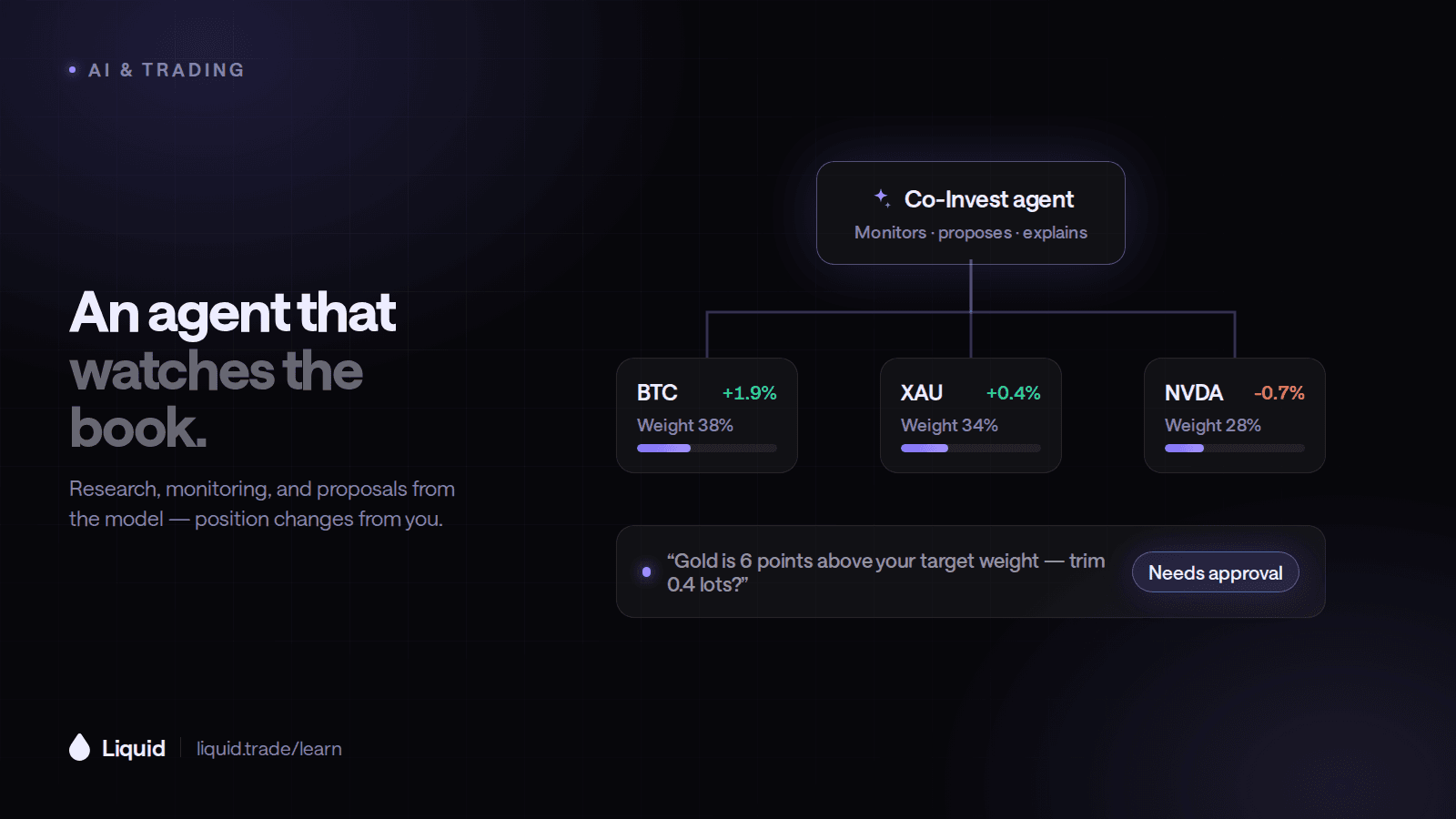
Define what an AI agent may research, propose, and execute. Compare user-confirmed Co-Invest with autonomous Co-Invest Computer and build clear risk limits.
AI & Trading
The Best AI Tools for Market Research and Trading: How to Choose
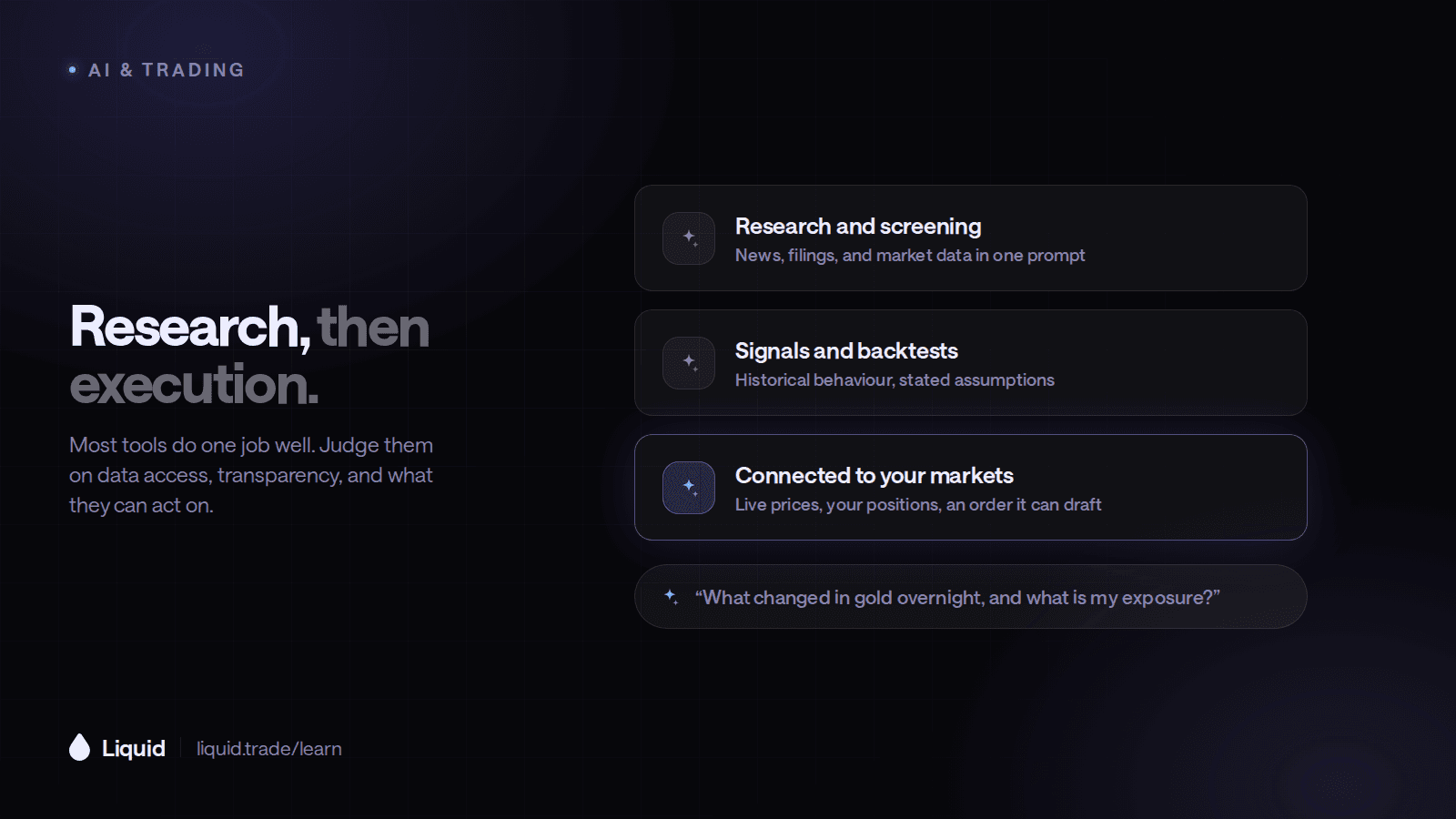
Compare AI research assistants, account-aware trading tools, backtesting platforms, and autonomous agents by what they actually do.
Put what you learned to work.
Trade crypto, stocks, commodities, FX, indices, and pre-IPO names — plus prediction markets. Prediction contracts are unleveraged; eligible perpetual markets offer multipliers of up to 50×.